
Bring Process Mapping Into Your AI Workflow With MCP

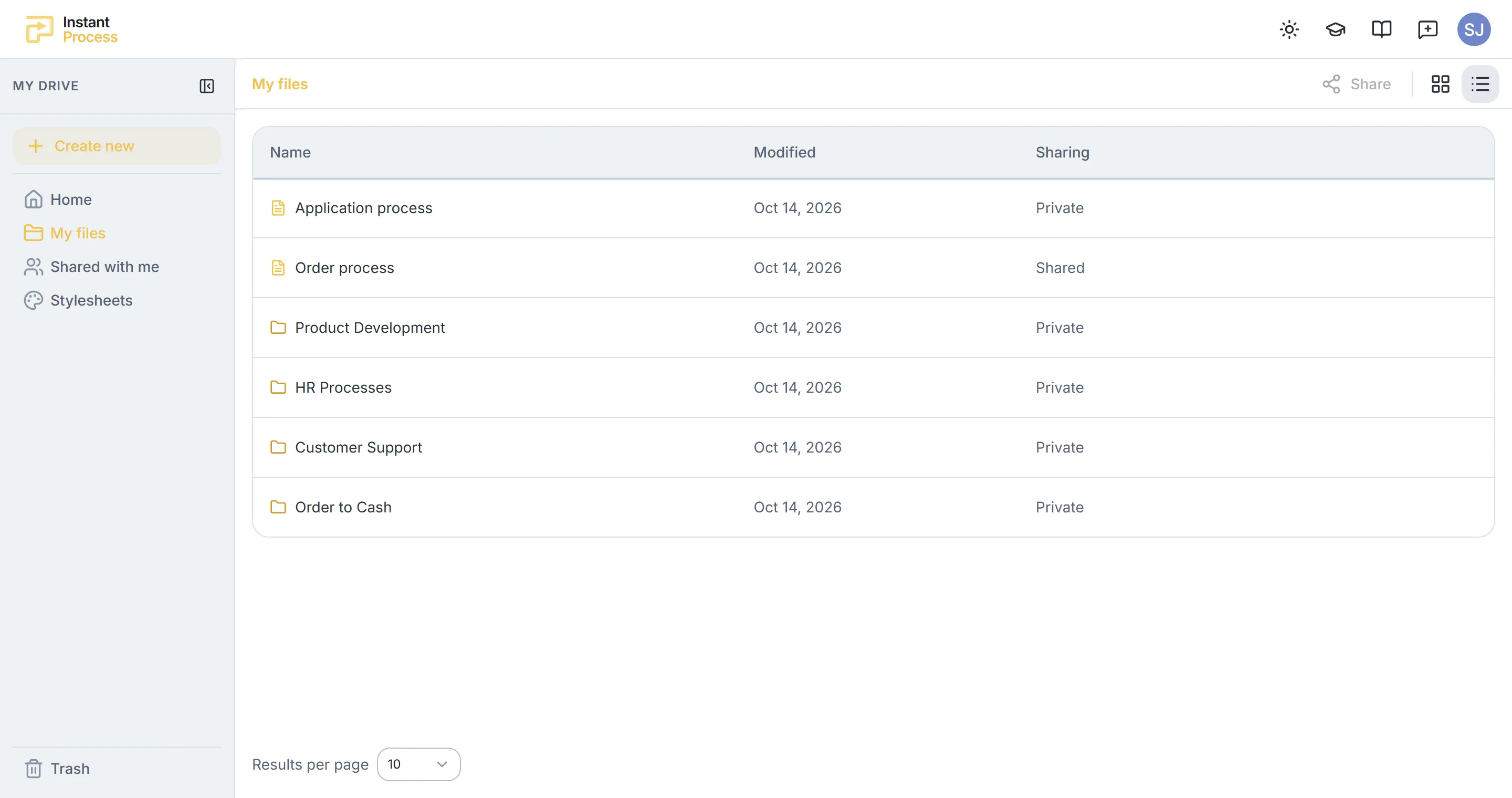
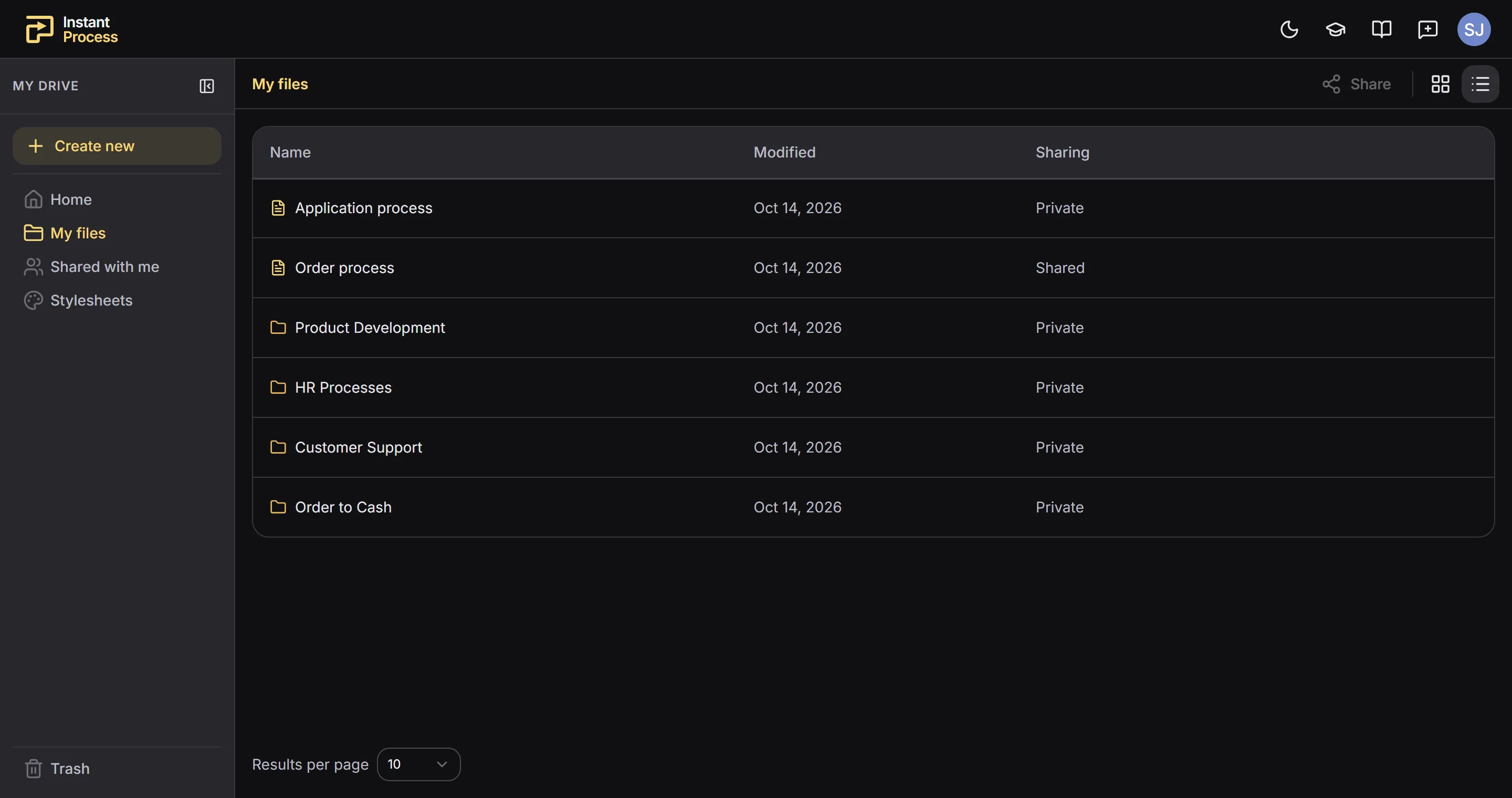
Instant Process has a remote MCP server. Connect the AI assistant you already use, such as Claude, ChatGPT, Cursor or Copilot, and it can create, read, render and improve your process models without you leaving the conversation.
The Model Context Protocol (MCP) is the open standard AI clients use to reach tools and data outside the chat. For process work, that means the assistant that just summarised your meeting can also turn that meeting into a process diagram, show it to you and hand you a link to open it.
From meeting notes to a process in one chat
Most process knowledge starts in a conversation: a workshop, an interview, a call with the team that does the work. The usual next step is a person turning notes into a diagram after the meeting. With the MCP server connected, that step happens in the assistant you are already talking to.
Here is how that usually goes.
1. Paste the transcript. Drop a meeting transcript or your notes into Claude or ChatGPT and ask: "Create a process from this in my Onboarding folder."
2. The assistant drafts the process. It reads the Instant Process language specification, writes the process code, compiles it to catch mistakes, and creates the process in your drive.
3. It renders and hands you the link. The assistant renders the process to an image, shows it in the chat, names the folder it is in, lists the assumptions it made, and gives you a link that opens the process in Instant Process.
4. You iterate in plain language. "Move the approval before the payment." "Add a path for when the customer does not respond within five days." The assistant reads the current code, applies the change and renders the result again.
5. You put the process to work. "Explain this process to a new hire." "Review this process and tell me what is missing." The assistant reads the process and answers, and the diagram stays the single version everyone opens.
The process lives in Instant Process, not in a chat history. Colleagues open it in the editor, comment on it and keep working on it, whether or not they use an AI assistant.
What a connected assistant can do
A connected client works with your processes as you. It can:
- list, read, create, rename, move and trash processes and folders;
- read and replace process code;
- compile a process to check it;
- render a process to an image;
- read and change process settings;
- read and add comments;
- search your processes and the documentation.
Results carry links that open the process in the web app. The server also gives the assistant the language specification, the agent instructions and the language cheatsheet. It reads them before it writes process code.
Three ready-made prompts
The server ships three prompts that clients show as shortcuts:
- Create a process from text. Turn a transcript or notes into a new process, rendered and linked at the end.
- Explain a process. Read, render and walk through a process step by step.
- Review a process. Compile the process, check it against the modeling guidelines and propose changes without writing them.
Connect your AI client
Often you can ask your AI client to add the server for you. Claude Code does this. If your client cannot, add it yourself. All clients use the same server URL:
https://api.instantprocess.nl/mcp
Claude (claude.ai and Claude Desktop). Open Settings, then Connectors, and choose Add custom connector. Enter a name and the server URL, choose Connect, sign in to Instant Process and choose Allow.
Claude Code. Run the command below, then run /mcp, select instantprocess and authenticate in the browser.
claude mcp add --transport http instantprocess https://api.instantprocess.nl/mcp
ChatGPT. Open Settings, then Apps and connectors, and create a connector with the server URL and OAuth authentication.
Cursor. Add the server to ~/.cursor/mcp.json, then open Cursor Settings, then MCP, and choose Connect.
{
  "mcpServers": {
    "instantprocess": { "url": "https://api.instantprocess.nl/mcp" }
  }
}
GitHub Copilot. In VS Code, add the server to .vscode/mcp.json or to your user configuration, start it from the file and sign in when VS Code asks.
{
  "servers": {
    "instantprocess": { "type": "http", "url": "https://api.instantprocess.nl/mcp" }
  }
}
The full steps are on the Connect an AI client page in the documentation.
You stay in control
- Sign in and approve. A client connects through OAuth. You sign in with your Instant Process account and approve the client on a consent page that names it.
- It acts as you. The client sees only the processes you may open, and nothing more.
- Read-only or read and write. Reading is always granted. Creating, changing and trashing is on by default and can be switched off at approval.
- Revoke at any time. Account, then Connected apps, lists every client you approved. Revoke ends its access at once.
- Nothing is permanently deleted. Trashing a process moves it to Trash, where it stays restorable.
The assistant brings its own language model, so a connected client spends none of your Instant Process AI budget.
Which plan includes MCP access
Connecting an AI client is part of the Premium plan. The Connected apps overview in your account is available on every plan, so you can always see and revoke what has access. See pricing for what each plan includes.
Try it
Create an account and start a Premium trial to connect your AI client. Want to see how process code turns into a diagram first? Open the trial editor, no account needed. For the method behind turning a conversation into a process, read how to map a business process in one meeting and text to BPMN.